Connect your Emeo Digital Sax to Band in a Box (BIAB)
Learn how to connect your Emeo Digital Sax to Band in a Box (BIAB) and configure the MIDI settings correctly.
Why connect the Emeo Sax to Band in a Box?
The Emeo Digital Sax is a MIDI instrument and does not produce sound by itself. You must connect it to a DAW or a standalone VST instrument to hear sound.
Band in a Box is a powerful music application that I often use for practicing, composing, and arranging music. In this tutorial I explain how I connect my Emeo Sax to BIAB.
The MIDI driver of the Emeo Sax is called Arduino MKR WiFi 1010.
Step-by-Step Guide
- Connect your Emeo Sax to your computer using the supplied USB cable.
- Your Emeo Digital Sax will start automatically.
- Start the Band in a Box application.
- From the top menu, select Options → MIDI/Audio Driver Setup.
- Select Arduino MKR WiFi 1010 as the MIDI Input Driver (left box).
- Do NOT select Arduino MKR WiFi 1010 as the MIDI Output Driver.
- Enable the Use VSTi/DXi Synth checkbox.
- Select "None" from the selection list in the VSTi/DXi instrument field"
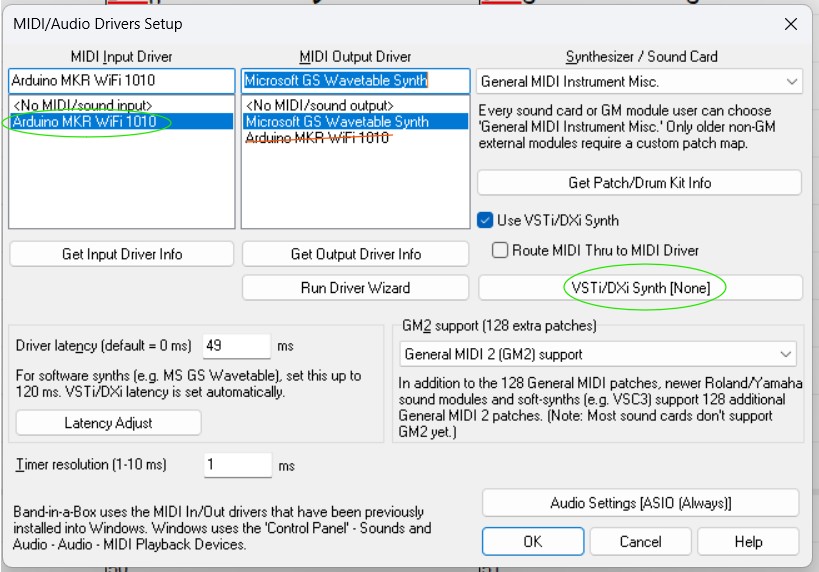
- Close the MIDI/Audio Driver Setup by clicking on the "OK" button.
- Open the "Mixer" in BIAB and slect the tag "Plugin".
- Goto the "Thru" track and click right-mouse button on the plugin field.
- Select the option "Choose VST3 plugin".
- Select your VST3 instrument, in my case this is the SWAM Sax VST.
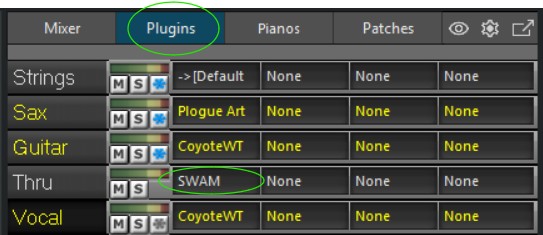
You are now ready to practice using BIAB, the midi-sound of your Emeo Sax is now connected to the "Thru" track on the mixer, using the selected VST3 instrument.
This tutorial is based on real-world use of the Emeo Digital Sax. Results may vary depending on firmware, drivers, and software versions.
Ask a Question